Remove EXIF data from your photos
View GPS, camera, and hidden metadata, then download a clean copy. JPEG, PNG, and WebP are stripped losslessly in your browser, so the file never leaves this device.
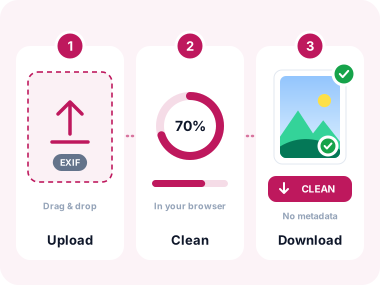
How to remove EXIF data in 3 steps
- Add photos on this device
Choose files, drag them in, paste a screenshot, or try the sample. JPEG, PNG, and WebP stay in browser memory. There is no URL fetch on this tool, so the original with GPS never crosses the network. - Read what is hidden
Each photo shows camera, GPS, date, exposure, copyright, and extra tags. GPS is marked in red with a map link. Pick Full clean, Location only, or Ready to publish. - Strip, verify, download
JPEG/PNG/WebP are rewritten without re-compressing pixels. The tool then re-reads the result so “clean” means the metadata is gone, not that the UI hid it. Download files or a ZIP, plus a CSV of what was found.
What this EXIF remover actually does

Lossless JPEG, PNG, and WebP
Metadata segments and chunks are cut out. The compressed picture data is copied byte for byte. That is the opposite of canvas re-savers, which decode and compress again.

Built-in metadata viewer
See camera, GPS, date, exposure, IPTC, and XMP before you strip. GPS is highlighted so you know which frames expose a location.

Bulk ZIP and CSV report
Clean a batch, download a ZIP, and export a CSV of method, GPS-before, and verify status, which is useful when you need a paper trail.

Honest format support
JPEG, PNG, and WebP are stripped in-container. HEIC becomes JPEG, TIFF becomes JPEG, AVIF/GIF/BMP are re-encoded. The UI labels a re-encode when it happens.

Files stay in the browser
Local photos are not uploaded. This site still loads standard analytics cookies like most websites; your image bytes are not part of that.

Verify after strip
After cleaning, the file is parsed again. A verified badge means privacy fields are gone. If something remains, it is listed instead of hidden.

Keep colour and rotation
ICC profiles stay so wide-gamut photos do not go flat. A single orientation tag is kept so portraits do not land on their side.

C2PA, thumbnails, Motion Photo
Full clean drops APP11/C2PA, EXIF thumbnails, comments, and data after the JPEG end marker (Samsung/Google Motion Photo video).
When to strip EXIF before you share
Platforms that display a photo often read GPS first. Email, Telegram, Discord, and listings usually keep the original file intact.
Email, chat, and cloud folders
WhatsApp (original quality), Telegram, Signal, Discord, and email attachments typically keep EXIF. Strip before you send the file, not after.
Marketplaces and listings
eBay, Etsy, and property portals often store the file you upload. Remove GPS so a product or home photo does not publish an address.
Your own website or CMS
WordPress and most CDNs do not strip EXIF for you. Cleaning first also trims file size when metadata blocks are large.
Social apps still see the original
Instagram, Facebook, and TikTok usually strip EXIF after upload. The platform still received GPS. Clean first if that matters to you.
Journalism and sensitive work
Strip serials, GPS, and software traces before a photo leaves the newsroom. Re-verify the download; do not trust a UI badge alone.
Privacy and record-keeping
Use Location only when you need camera settings kept. Use the CSV when a client or compliance process asks what was removed.
How this compares with typical online removers
Most “free EXIF remover” pages decode the photo onto an HTML canvas and export a new JPEG. That works, and it costs a generation of quality. First-page tools now advertise lossless strip instead. This page does the same for JPEG, PNG, and WebP.
| Topic | This tool | Canvas re-savers | What to look for |
|---|---|---|---|
| Image quality | JPEG/PNG/WebP: copy compressed bytes. HEIC/TIFF/AVIF: re-encode, labelled in the UI. | Always re-encodes. Quality 90–100 still changes the file. | Ask whether APP segments are copied or the picture is redrawn. |
| Proof it worked | Re-parses the output. Shows remaining fields if any. | Often clears an in-memory object and calls it clean. | Open the download in any EXIF viewer. The list should be empty. |
| What is kept | Colour profile (ICC) and orientation tag. | ICC usually dropped. Portraits can flip if orientation is deleted wholesale. | Keep ICC and a single Orientation tag; drop GPS and serials. |
| Privacy story | Local files only. No URL proxy. Site analytics cookies still load with the page. | Many still upload to a server, or hide a proxy behind “online”. | Check DevTools → Network while you strip. Image bytes should not upload. |
| Hidden extras | Drops C2PA APP11, comments, EXIF thumbnail, and trailing Motion Photo data. | Re-encode drops most of this by accident, at the cost of pixels. | C2PA and Motion Photo are not classic EXIF; a list-based remover can miss them. |
Removed on full clean
GPS and altitude, camera serials and MakerNote, timestamps, artist and caption fields, IPTC/XMP packets, EXIF thumbnail, JPEG comments, C2PA/Content Credentials, and bytes after JPEG EOI (Motion Photo).
Kept on purpose
The compressed picture, ICC colour profile, JFIF/Adobe colour hints, and a single orientation tag when the photo is rotated. Location-only and Ready to publish keep more camera tags by design.
What is removed vs what stays
Do apps strip EXIF for you?
“Social media removes metadata” is only half true. Stripping after upload still means the service received GPS. Direct file sharing usually does not strip anything.
| Where you share | What happens to EXIF | What to do |
|---|---|---|
| Instagram, Facebook, TikTok, X | Usually stripped from the public file after upload. The original still arrived with GPS. | Clean first if you do not want the platform to see location. |
| Email, Discord, Telegram, iCloud/Drive links | The file is kept as-is in most cases. | Always strip before attach or upload. |
| WhatsApp / Signal | Compressed chat images may drop EXIF; “original quality” / document send often keeps it. | Strip first, then send as a photo or file. |
| Your website, CMS, marketplaces | Whatever you upload is stored. Few hosts strip GPS. | Clean, then upload. Optionally compress in a second step. |
Format notes (no over-claim)
- JPEG / JPG: Lossless. APP1 EXIF/XMP, IPTC, C2PA, comments, and trailing video are removed. ICC and orientation stay.
- PNG: Lossless. tEXt/iTXt/zTXt, eXIf, tIME, and C2PA chunks are dropped. Pixels and ICC stay.
- WebP: Lossless for still images. EXIF and XMP chunks are dropped; ICC stays. Animated WebP is not a pixel-perfect path if the browser rewrites frames.
- HEIC (iPhone): Browsers cannot write HEIC. The clean copy is JPEG (re-encoded). Convert with HEIC to JPG if you only need a preview format.
- TIFF, AVIF, GIF, BMP: Accepted, then re-encoded (TIFF via decoder → JPEG; others via canvas/PNG). The card will say so. Prefer exporting JPEG/PNG/WebP from the camera when quality matters.
Frequently Asked Questions
What is EXIF data and why remove it?
EXIF is metadata cameras write into photos: GPS, device model, time, sometimes a serial number. Anyone with a free viewer can read it. Removing it before you share stops accidental location leaks.
Does this reduce image quality?
Not for JPEG, PNG, or WebP on Full clean: the compressed image data is copied, not decoded. HEIC, TIFF, AVIF, GIF, and BMP cannot be rewritten that way in the browser, so they are re-encoded and labelled. Canvas-only tools always re-save JPEG, even at “100% quality”.
Which formats are lossless?
JPEG, PNG, and still WebP. iPhone HEIC is converted to JPEG. TIFF is converted to JPEG. That conversion is disclosed on the file card.
Are my images uploaded to a server?
Local files are processed in the browser. This tool does not offer URL import, so photos are not fetched through our proxy. The website itself uses Google Analytics like many sites; that is page traffic, not your image bytes. You can confirm image processing in DevTools → Network.
How many images can I process?
There is no account cap. Browser memory is the limit. Very large batches or 40+ MB files may slow or fail on phones. That is a device limit, not a hidden paywall.
Can I view EXIF before removing it?
Yes. Upload, then open View metadata. GPS is highlighted and can open in Google Maps. After stripping, the same panel shows a verified-empty state or any leftover fields.
Do I need an account?
No. No sign-up, no watermark, no paid tier on this page.
What metadata is removed?
Full clean removes EXIF (including GPS and thumbnail), IPTC, XMP, comments, C2PA, and trailing Motion Photo data. Colour profile and orientation stay. Location only targets GPS on JPEG. Ready to publish keeps camera and copyright, drops GPS, serials, comments, and thumbnail.
Does Instagram already remove EXIF?
It usually strips metadata from the public image after upload. The original file with GPS still went to Instagram’s servers. Email, Telegram, Discord, and most listings never strip it. Clean the file before any of those.
Why do some removers flip portraits?
Phones store a landscape bitmap plus an Orientation tag. Deleting all EXIF deletes that tag. This tool keeps a single orientation value so the photo still displays upright.
What is C2PA?
Content Credentials (C2PA) are signed provenance records some AI tools and editors embed outside classic EXIF. Full clean removes those segments. Pixel watermarks such as SynthID cannot be removed by a metadata tool.
Why rename the file?
A name like IMG_20240612_143022.jpg states the date and minute even when every tag is gone. Optional renaming uses photo-1.jpg, photo-2.jpg, and so on.
Privacy notes, without the usual over-claim
Your photos are read and rewritten in this browser tab. They are not posted to an image API. That is the important part for GPS.
This website still loads analytics scripts in the page layout. That is not the same as uploading a photograph, and it is also not “we collect nothing.” If you need a page with zero third-party scripts, use a desktop tool such as ExifTool offline.
Local file processing
Strip runs in the tab. Closing the tab drops the buffers.
Re-read after clean
A verified badge is based on parsing the new file, not on emptying a JavaScript object.
You stay in control
Pick full wipe, GPS only, or publish-ready. Optional CSV records what happened.
Related tools
Next steps after you clean metadata: convert iPhone photos, shrink files, or keep working with JPEG.
Convertir depuis JPG

Convertir en JPG


Utilitaires d'image

Remove EXIF data from your photos - français
Disponible dans d'autres langues

Strip GPS and EXIF on this device
View hidden metadata, choose a clean mode, verify the result, download. JPEG pixels stay as they were.
- ✓ 100% free
- ✓ No signup
- ✓ Files stay private